Class Finder Setup Guide
How to install Class Finder for Jackrabbit Class, connect it to your Jackrabbit account, and add it to your WordPress pages. Prefer to hand it off? Add Setup at checkout.
Before you start
- WordPress 6.0 or newer and PHP 7.4 or newer.
- An active Jackrabbit Class account.
- An administrator login for your WordPress site.
- Your Class Finder license key, from the email sent after checkout.
Install the plugin
- Download the plugin zip from the link in your purchase email. The link lasts 7 days. After that, download it any time from your account.
- In WordPress, go to Plugins > Add New Plugin > Upload Plugin, choose the zip, and click Install Now.
- Click Activate. Class Finder appears in the WordPress menu.
Enter your license key
Go to Class Finder in the WordPress menu, paste your key (it looks like CFJ-ABCD-EFGH-JKLM-NPQR), and save. The settings open once the key is accepted, and updates arrive in Dashboard > Updates like any other plugin.
- Lost your key? Use the "Lost your key?" link under the key box, and it is emailed to the address used at checkout.
- Local and staging copies (such as
.localsites, host staging domains, andstaging.subdomains) don't use up your sites. - Moving to a new domain? The license moves with the site (version 1.7 and newer).
- If the license expires, the class finder and its settings keep working. Updates stop until you renew.
Connect Jackrabbit
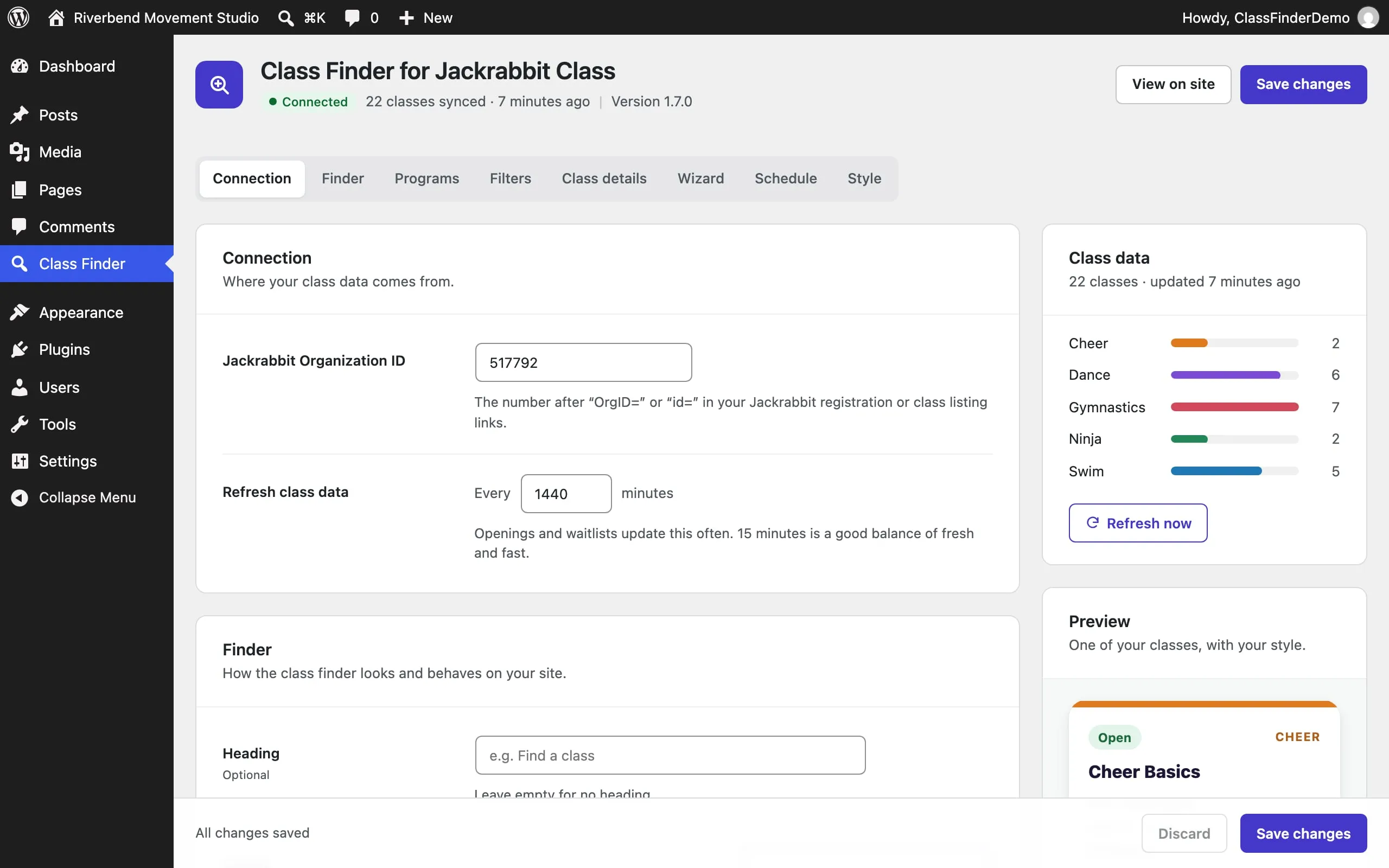
- Find your Organization ID: it's the number after
OrgID=orid=in your Jackrabbit registration or class listing links. - In Class Finder > Connection, enter it and click Save changes.
- The header shows Connected and how many classes were synced. The Class data card shows the count for each program.
Class Finder keeps a copy of your classes and refreshes it every 15 minutes. You can set anywhere from 5 minutes to 24 hours, or click Refresh now after changing classes in Jackrabbit.
Add the class finder
Add it to any page in one of three ways:
- Block editor: add the Class Finder block.
- Elementor: drag in the Class Finder widget.
- Anywhere else: paste the shortcode
[jr_class_finder], or build one with point and click.
The shortcode takes these options. The shortcode builder fills them in for you.
| Option | What it does | Example |
|---|---|---|
program | Show one program, or several separated by commas. The Program filter is hidden. | program="Dance" |
title | A heading above the finder. Leave it out to use the heading from settings, or use title="" for none. | title="Dance classes" |
filters | Which filters to show, separated by commas: search, program, sub, sub2, location, gender, age, day, time, openings. | filters="age,day,openings" |
layout | Filters across the top or in a sidebar. | layout="sidebar" |
view | Class cards or a compact list. | view="list" |
For example, a dance page with three filters: [jr_class_finder program="Dance" title="Dance classes" filters="age,day,openings"]
Location, gender, and category filters only appear when your classes use them.
Add the Class Wizard
The Class Wizard asks three questions (age, what sounds fun, and when works best) and points new families to a program. Add the Class Wizard block, the Class Wizard Elementor widget, or [jr_class_wizard].
- Class Finder > Wizard sets the free-trial link, button label, heading, and age groups.
- Age groups go one per line as
label | ages, such as7 to 9 years | 7-9orAdults | 18+. Groups with no classes are hidden. - Class Finder > Programs holds each program's short description and three points for the wizard's result card.
| Option | What it does | Example |
|---|---|---|
title | The heading. Leave it out to use the one from settings. | title="Not sure where to start?" |
intro | A short line under the heading. | intro="Three quick questions." |
cta_url | Where the main button goes, such as your free-trial or registration form. Overrides the setting. | cta_url="https://…" |
finder_url | The page with your class finder, for the "See classes" link. Found automatically when left out. | finder_url="/classes/" |
Add the weekly schedule
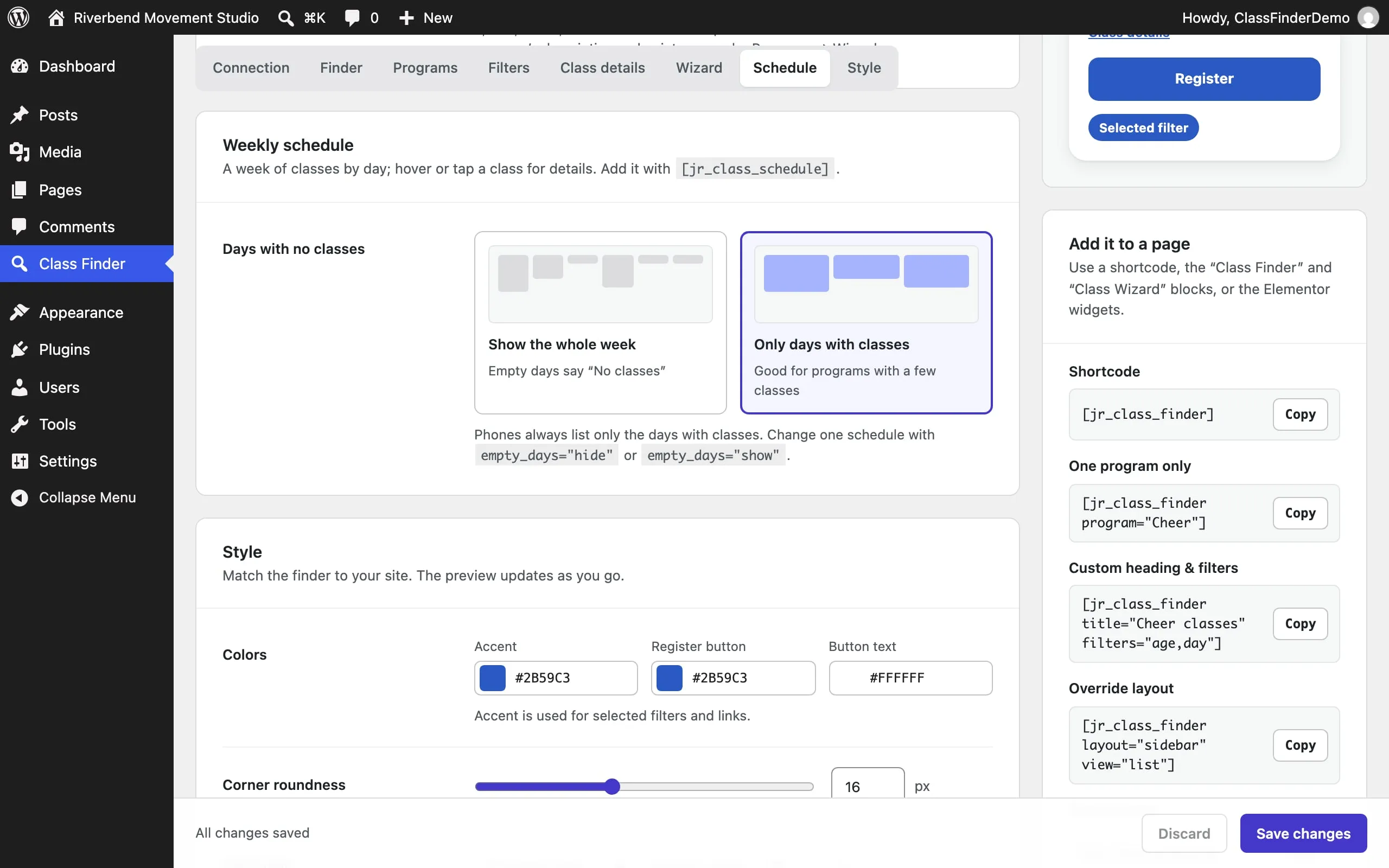
The weekly schedule shows a week of classes, one column per day. Hovering a class on a computer, or tapping it on a phone, shows its details and the Register or Join Waitlist button. Add [jr_class_schedule] with a Shortcode block, or with Elementor's Shortcode widget.
| Option | What it does | Example |
|---|---|---|
program | Show one program, or several separated by commas. | program="Swim" |
location | Show one location, or several separated by commas. Without it, each location gets its own tab. | location="Main Street" |
title | A heading above the schedule. | title="Fall schedule" |
button | Show a button that opens the schedule in a popup, with this text. | button="See the weekly schedule" |
button_style | The popup button as a solid or an outlined (ghost) button. | button_style="ghost" |
empty_days | Show or hide days with no classes. Overrides the setting for this schedule. | empty_days="hide" |
sunday | auto shows Sunday only when there are Sunday classes; show or hide it always. | sunday="hide" |
For example, a button on a swim page that opens the swim schedule: [jr_class_schedule program="Swim" button="See the weekly schedule"]
Class Finder > Schedule sets whether empty days show by default. The shortcode builder makes a schedule shortcode for you, and the sidebar lists ready-made ones with a Copy button.
Build a shortcode
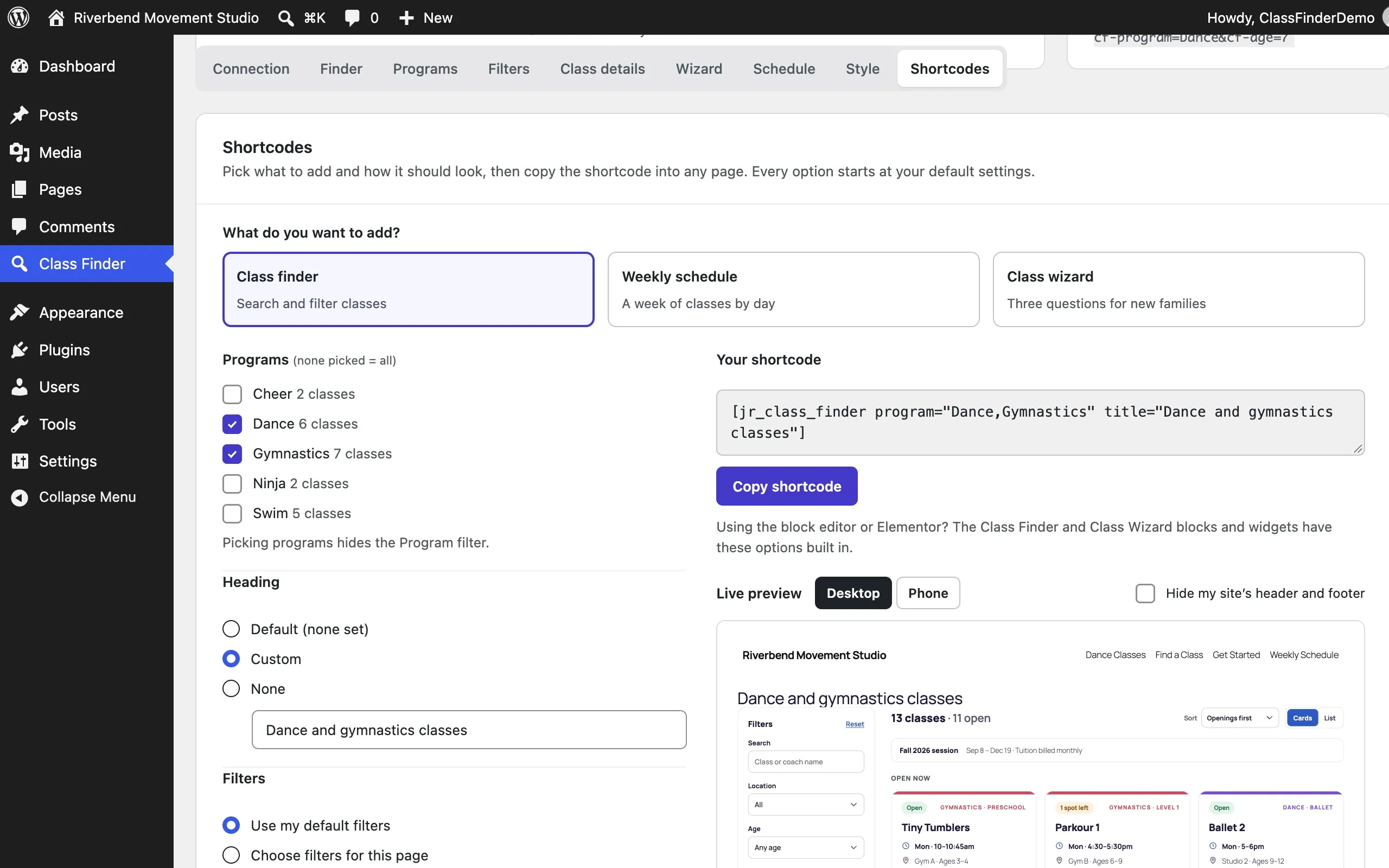
No need to type shortcode options. In version 1.8 and newer, the Shortcodes section of the Class Finder settings (the last tab across the top) builds them for you:
- Choose what to add: the class finder, the weekly schedule, or the Class Wizard.
- Pick the options, such as programs, filters, a layout, or a popup button. Everything starts at your default settings, and only what you change goes in the shortcode.
- Check the live preview, which shows it on your own site, with your header and footer, at computer or phone width.
- Click Copy shortcode and paste it into a Shortcode block, Elementor's Shortcode widget, or any page.
The Build one links in the Wizard and Schedule sections, and the Build a shortcode button in the sidebar, jump straight to the builder. The Class Finder and Class Wizard blocks and Elementor widgets have the same options built in.
Match your site
- Style: accent and button colors, corner roundness, card style, and your site's font.
- Programs: rename a program, and give it an icon, a color, a gradient, or a photo strip. Nothing changes in Jackrabbit.
- Sticky header height: if your site's header stays fixed while scrolling, enter its height so the filters stick just below it.
- Class details: choose what each class shows, and whether full classes are listed.
The preview card in the sidebar updates as you change settings, using one of your real classes.
Share filtered links
Every filtered view has its own link, so you can send families straight to the right classes from an email, an ad, or a program page. Add these to your class finder page's address:
| Add | Filters by | Example |
|---|---|---|
cf-program | A program | cf-program=Dance |
cf-age | An age, an age range, or 18+ for adults | cf-age=7 or cf-age=6-9 |
cf-day | One or more days | cf-day=mon,wed |
cf-time | morning, afternoon, or evening | cf-time=afternoon |
cf-location | A location | cf-location=Riverside |
cf-open | Only classes with openings | cf-open=1 |
cf-q | A search. Put it in quotes to match a class name exactly. | cf-q="Ballet 1" |
Join them with &. For example, dance classes with openings for a 7-year-old: /classes/?cf-program=Dance&cf-age=7&cf-open=1. The easiest way to get a link is to set the filters on your page and copy the address from the browser.
Track it in Google Analytics
In version 1.8 and newer, Class Finder tells Google Analytics when families search, filter, open a class, and click Register. It's on by default, and it works with the Google tag already on your site, whether that's from Site Kit, MonsterInsights, a GA4 tag, or Google Tag Manager. Class Finder adds no cookies and stores nothing.
To turn it off, go to Class Finder > Class details > Analytics. The events it sends:
| Event | Sent when |
|---|---|
cf_register_click | Register or Join Waitlist was clicked, with the class, program, location, and status. Mark it as a key event in Google Analytics. |
cf_search | A search, with the words searched and the number of results. |
cf_filter | A filter was used, with its value and the number of results. |
cf_no_results | A search or a set of filters found no classes. |
cf_details_open | Class details were opened, in the finder or the schedule. |
cf_schedule_open | The schedule popup was opened. |
cf_wizard_answer | A Class Wizard question was answered. |
cf_wizard_cta | The Class Wizard's button or "See classes" link was clicked. |
- Count registrations: in Google Analytics, mark
cf_register_clickas a key event. - See class and program names in reports: add
cf_class,cf_program,cf_location,cf_status, andcf_sourceas event-scoped custom dimensions under Admin > Custom definitions. Searches show under the built-in search term. - Using Google Tag Manager without the Google tag? The events go to the data layer under the same names, ready for a GA4 event tag.
- Another tool, such as Plausible, Matomo, or Meta Pixel? Listen for the
cfj:trackevent on the page. It fires even with the switch off.
Troubleshooting
- The Class Finder settings only show a license box.
- Enter your license key. Without one, the settings stay closed, but the class finder on your site keeps working.
- The page says to add a Jackrabbit Organization ID.
- Only administrators see this message. Enter your Organization ID under Class Finder > Connection and save. Visitors see a short "temporarily unavailable" note instead.
- A change in Jackrabbit isn't showing yet.
- Click Refresh now under Class Finder, or wait for the next refresh. If your site uses a page caching plugin or host caching, clear that cache too.
- A class is missing.
- Class Finder lists the classes Jackrabbit shares in its online class listings. If a class doesn't appear there, check its settings in Jackrabbit, then click Refresh now.
- Jackrabbit is down.
- The finder keeps showing the last good copy of your classes, then tries again shortly after.
- A filter I turned on isn't showing.
- Location, gender, and category filters only appear when your classes use them. A program filter is hidden on a finder limited to one program.
- The key says it's in use on the most sites it allows.
- Remove an old site from your account, or use the license for up to 5 sites. Staging and local copies don't count.
- No Class Finder events show in Google Analytics.
- Check that the Analytics switch is on and that the Google tag or Tag Manager loads on the page. New events can take a day to show in reports; use Realtime or DebugView to see them sooner. A cookie banner that blocks Google Analytics blocks these events too.
- Updates aren't showing.
- Check that the license is active under Class Finder, then look in Dashboard > Updates. Updates need an active license.
Still stuck?
Write in with your website address and what you're seeing. Send a question or go back to Class Finder.
Not affiliated with or endorsed by Jackrabbit Technologies. Jackrabbit is a trademark of its owner.